
Ubisoft refund/inquiry method: Distinguish between Ubisoft Connect purchase and subscription
This is information for those who would like to receive a refund for games or items purchased from the Ubisoft Store. First, check the actual seller of the receipt and follow the steps to submit it to the account you purchased it from. We've even outlined how to inquire when you don't see the refund button and how to check the results.
1. Check if my purchase is eligible for a refund
Official support notes that for eligible PC digital games purchased directly from the Ubisoft Store, you can generally request a refund within 14 days of purchase and no more than two hours of play. Please check the exclusion conditions for each product and the availability displayed in the order details. Just because it's in the Ubisoft Connect library doesn't mean it's a Ubisoft Store purchase.
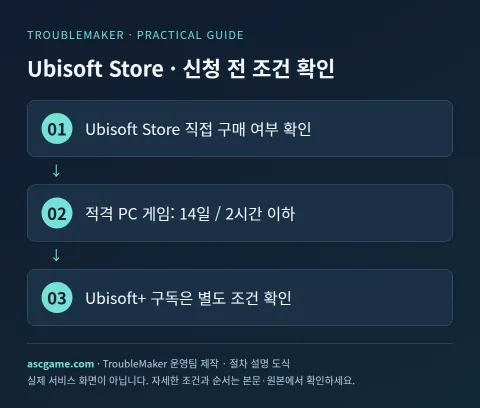
2. Changes by game, DLC, and subscription
Ubisoft games purchased on Steam or Epic will be requested from the relevant retailer. DLC, virtual currency, consumables, pre-ordered products, and physical products may each have separate conditions. Ubisoft+ subscriptions are subject to cancellation of auto-renewal and return of any fees already charged. Your legal right of withdrawal based on your region should be checked against the terms of sale and your account country, and the game's 14-day/2-hour timescale should not be copied directly into your subscription.
3. Materials to prepare before application
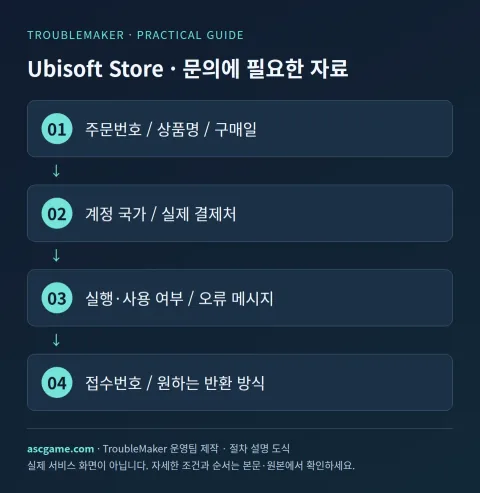
Order number, payment date and time, product name/edition, amount/currency, actual payment destination, account country, execution/use status are organized in one note. If there is an error, write down the error code, when it occurred, and what action you have already tried. Attach only the part of the receipt screen that shows your account email and order to official private inquiries and do not post it in public comments.
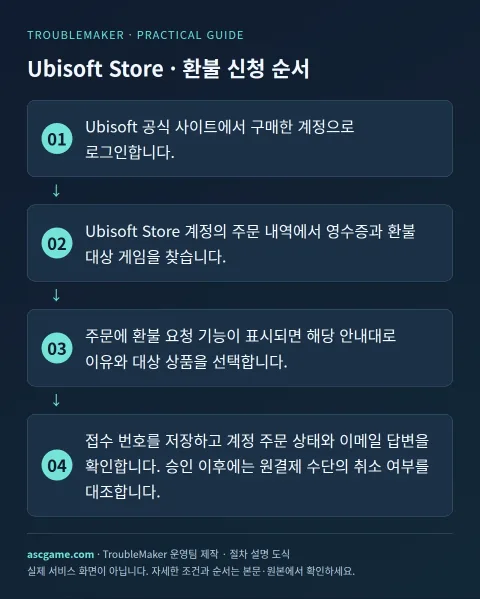
4. Proceed with refund application step by step
- Log in with the account you purchased from the Ubisoft official site.
- On the store web, go to Profile in the upper right corner → My orders. To purchase Connect PC, use the path on the top left: Profile → Account management → Payment and subscription → Orders and refunds.
- Read the current support terms in the official Requesting a refund on the Ubisoft Store document.
- Select View order details → Ask for a refund, select a reason, and press Continue. Select a return method from How would you like to be refunded? and submit with Confirm.
- If the direct application function is not available or an error occurs, select Purchase/Payment Issues in Ubisoft Help and contact the relevant order.
- Save your receipt number and check your account order status and email response. After approval, the original payment method is checked for cancellation.
5. When it is not on the list or the money is not visible after approval
The client's cumulative play time and actual purchase date are important. If you have issues linking to a different account or a different purchase location, you may need to inquire about linking your account first. Please include the edition, main game/DLC, order number, and platform in your inquiry to avoid confusion with other products with the same name. If you submit with an account other than the one used for payment, we may not be able to retrieve your order.
6. Contact customer support
On the Signed in Support screen of Ubisoft Help, use the submission method provided for your current account country. If you check the terms in the original document but there is no button on your order, send us the on-screen message and payment receipt. If customer support asks for additional information, answer the existing case number and do not post the entire personal receipt on a public bulletin board. If the answer determines that the product is excluded, we will ask specifically what conditions apply.
7. Inquiry that can be rewritten as is
The sentence below is an example of an inquiry message sent to customer support and is not a method of bypassing approval. Replace the parentheses with actual information and erase anything that does not apply to your situation. In particular, whether it is used or when it is first run is stated truthfully.
Title: [Ubisoft Store] Purchase Refund / Payment Inquiry
Order number: [Order number on receipt]
Product Name/Edition: [Game / DLC / Subscription Name]
Purchase date/amount/currency: [Date and actual amount]
Purchase place/account country: [store and country]
Run/Use: [Play time / Not used]
Problem: [When it occurred and the actual reason]
Actions already attempted: [Actions and Results]
Request: [Refund availability / Confirm order / Check processing status]
Existing application number: [Enter if available]
8. Check after submission
Save the application completion screen and confirmation email and check the status of your request first. Reviewing, approval, rejection, and waiting for payment company reflection are different states. If denied, check what conditions were applied and supplement the original request as new evidence becomes available. Even if a refund is approved, check separately whether automatic renewal has been canceled. The process is completed by confirming the final return method and changes in game/item usage rights.
Source and verification criteria
Written by the TroubleMaker operations team based on the original instructions confirmed on October 7, 2026. The images below are schematics I created to explain the procedure and are not actual account screens or proof of application completion. Menu names and terms of provision may vary depending on account country, product, or update, so please check the original page as well.
Ubisoft Store Official Refund Application Guide
Google Translate machine translation · Original text and source region are preserved.
Original language · ko
유비소프트 환불·문의 방법: Ubisoft Connect 구매와 구독을 구분하기
Ubisoft Store에서 결제한 게임이나 아이템을 돌려받고 싶은 분을 위한 안내입니다. 먼저 영수증의 실제 판매처를 확인하고, 구매한 계정으로 접수하는 순서를 따라가세요. 환불 버튼이 안 보일 때 문의하는 방법과 결과를 확인하는 방법까지 정리했습니다.
[1. 내 구매가 환불 대상인지 확인]
Ubisoft Store에서 직접 구매한 적격 PC 디지털 게임은 일반적으로 구매 후 14일 이내, 플레이 2시간을 넘기지 않은 조건에서 환불을 요청할 수 있다고 공식 지원이 안내합니다. 상품별 제외 조건과 주문 상세에 표시되는 신청 가능 여부를 함께 확인하세요. Ubisoft Connect 라이브러리에 있다는 사실만으로 Ubisoft Store 구매인 것은 아닙니다.
[image:conditions]
[2. 게임·DLC·구독별로 달라지는 점]
Steam·Epic에서 구매한 Ubisoft 게임은 해당 판매처로 요청합니다. DLC·가상화폐·소모품·예약상품과 실물 상품은 각각 별도 조건이 있을 수 있습니다. Ubisoft+ 구독은 자동 갱신 취소와 이미 청구된 요금의 반환을 나누어 확인합니다. 지역에 따른 법적 철회권은 판매 약관과 계정 국가를 대조해야 하며 게임의 14일·2시간 기준을 구독에 그대로 복사하면 안 됩니다.
[3. 신청 전에 준비할 자료]
주문번호, 결제일과 시각, 상품명·에디션, 금액·통화, 실제 결제처, 계정 국가, 실행·사용 여부를 한 메모에 정리합니다. 오류가 있다면 오류 코드와 발생 시점, 이미 시도한 조치를 적습니다. 영수증 화면은 계정 이메일과 주문을 확인할 수 있는 부분만 공식 비공개 문의에 첨부하고 공개 댓글에는 올리지 마세요.
[4. 환불 신청을 단계별로 진행하기]
1. Ubisoft 공식 사이트에서 구매한 계정으로 로그인합니다.
2. Store 웹에서는 우측 위 프로필 → My orders로 들어갑니다. Connect PC 구매는 좌측 위 프로필 → Account management → Payment and subscription → Orders and refunds 경로를 사용합니다.
3. 공식 Requesting a refund on the Ubisoft Store 문서에서 현재 지원 조건을 읽습니다.
4. 주문의 View order details → Ask for a refund를 선택하고 사유를 고른 뒤 Continue를 누릅니다. How would you like to be refunded?에서 반환 방식을 선택하고 Confirm으로 제출합니다.
5. 직접 신청 기능이 없거나 오류가 발생하면 Ubisoft Help에서 구매·결제 문제를 선택하고 해당 주문으로 문의합니다.
6. 접수 번호를 저장하고 계정 주문 상태와 이메일 답변을 확인합니다. 승인 이후에는 원결제 수단의 취소 여부를 대조합니다.
[image:request]
[5. 목록에 없거나 승인 뒤 돈이 안 보일 때]
클라이언트의 누적 플레이 시간과 실제 구매일이 중요합니다. 다른 계정으로 연결되거나 구매처가 다른 문제는 계정 연결 문의가 먼저 필요할 수 있습니다. 문의에 에디션, 본편·DLC 여부, 주문번호, 플랫폼을 함께 적으면 같은 이름의 다른 상품을 혼동하지 않습니다. 결제에 사용한 계정이 아닌 다른 계정으로 접수하면 주문을 찾지 못할 수 있습니다.
[6. 고객지원으로 문의하기]
Ubisoft Help의 로그인된 지원 화면에서 현재 계정 국가에 제공되는 접수 수단을 사용합니다. 원본 문서에서 조건을 확인했지만 주문에 버튼이 없다면 화면에 나온 메시지와 결제 영수증을 보내세요. 고객지원이 추가 정보를 요구하면 기존 사건 번호에 답하고, 공개 게시판에 개인 영수증 전체를 올리지 않습니다. 답변에서 제외 상품이라고 판단하면 어떤 조건이 적용됐는지 구체적으로 문의합니다.
[image:contact]
[7. 그대로 고쳐 쓸 수 있는 문의문]
아래 문장은 접수 문안 예시이며 승인 우회 방법이 아닙니다. 괄호를 실제 정보로 바꾸고 본인 상황에 없는 내용을 지우세요. 특히 사용 여부나 첫 실행 시각은 사실대로 적습니다.
```text
제목: [Ubisoft Store] 구매 환불 / 결제 문의
주문번호: [영수증의 주문번호]
상품명·에디션: [게임 / DLC / 구독 이름]
구매일·금액·통화: [날짜와 실제 금액]
구매처·계정 국가: [스토어와 국가]
실행·사용 여부: [플레이 시간 / 미사용 여부]
문제: [발생 시점과 실제 사유]
이미 시도한 조치: [조치와 결과]
요청: [환불 가능 여부 / 주문 확인 / 처리 상태 확인]
기존 접수번호: [있으면 기재]
```
[8. 접수 후 확인할 것]
신청 완료 화면과 확인 메일을 보관한 뒤 요청 상태를 먼저 확인합니다. 심사 중, 승인, 거절, 결제사 반영 대기는 서로 다른 상태입니다. 거절됐다면 어떤 조건이 적용됐는지 확인하고 새로운 증거가 있을 때 기존 요청에 보충합니다. 환불 승인이 나더라도 자동 갱신 해지가 함께 됐는지 따로 확인하세요. 최종 반환 방식과 게임·아이템 사용 권한의 변화를 확인하면 절차가 마무리됩니다.
[출처와 확인 기준]
2026년 10월 7일에 확인한 원본 안내를 바탕으로 TroubleMaker 운영팀이 작성했습니다. 아래 이미지들은 순서를 설명하기 위해 직접 만든 도식이며 실제 계정 화면이나 신청 완료 증빙은 아닙니다. 메뉴 명칭과 제공 조건은 계정 국가·제품·업데이트에 따라 달라질 수 있으므로 원본 페이지도 함께 확인하세요.
Ubisoft Store 공식 환불 신청 안내
Ubisoft 공식 고객지원
Ubisoft 판매 약관
comments 0