
Apply for an EA game refund: 24 hours after first launch, check order status with Refund Tool
This is information for those who want to receive a refund for games or items purchased through EA app / EA.com. First, check the actual seller of the receipt and follow the steps to submit it to the account you purchased it from. We've even outlined how to inquire when you don't see the refund button and how to check the results.
1. Check if my purchase is eligible for a refund
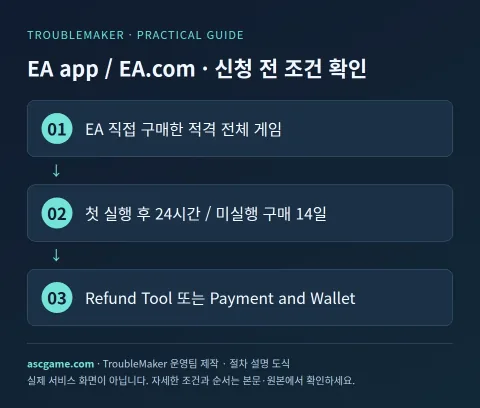
EA's refund policy applies to all eligible PC and Mac games purchased directly from the EA app or EA.com, as well as participating third-party games. Current guidance suggests cancellation/refund requests within 24 hours of first launch, within 14 days of purchase if not yet launched, and cancellation/refund requests before launch for pre-orders. It should not be understood as a policy of recalculating 14 days from the date of execution.
2. Changes by game, DLC, and subscription
If a new game is unplayable due to technical issues under EA's control and you purchased it within the first 30 days after launch, you will be notified of an exception where the request deadline is 72 hours instead of 24 hours after first launch. Separately purchased DLC, game currency, and editions that include some virtual currencies are not subject to the general policy. For Steam, Epic, Console, and Mobile store purchases, the relevant retailer is responsible for refunds. EA Play PC memberships are also generally not eligible for refunds like games.
3. Materials to prepare before application
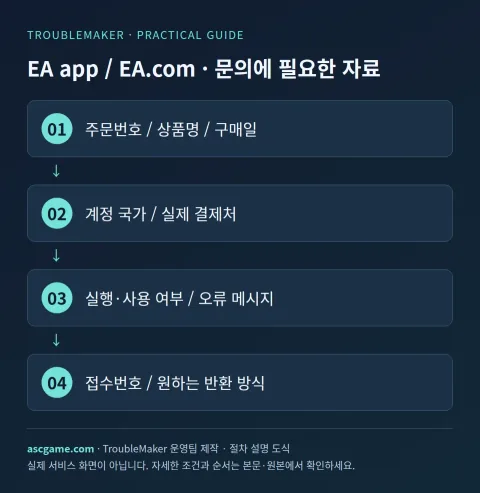
Order number, payment date and time, product name/edition, amount/currency, actual payment destination, account country, execution/use status are organized in one note. If there is an error, write down the error code, when it occurred, and what action you have already tried. Attach only the part of the receipt screen that shows your account email and order to official private inquiries and do not post it in public comments.
4. Proceed with refund application step by step
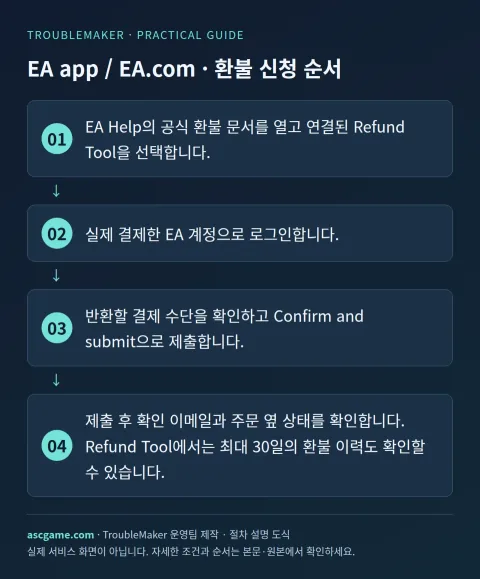
- Open the official refund document in EA Help and select the associated Refund Tool.
- Log in with the EA Account you actually paid for.
- Select the eligible games that appear in the tool and enter your reason for a refund. If you don't see the game, first check where you purchased it and your account.
- Confirm the payment method for return and submit with Confirm and submit.
- When accessing account management, use the following path: Payment and Wallet → Order history → Expand order (+) → Request a refund.
- After submission, check your confirmation email and status next to your order. In the Refund Tool, you can also check refund history for up to 30 days.
5. When it is not on the list or the money is not visible after approval
When contacting us for technical issues, we will note the time of first launch, time of server error/crash, and error message. Support may request Client_log. On Windows, there are instructions for finding the file in AppData under Local → EA Desktop → Logs. Send only the logs you need through a private support channel. Check the current EA refund policy document first before searching for old articles with the name Great Game Guarantee.
6. Contact customer support
Use Contact us at the bottom of the EA Help refund document to connect to the support path appropriate for your game/platform/order issue. If your game is not on the eligible list, provide your payment receipt and game edition and ask why it is missing. Before unilaterally reversing a payment through your credit card company, check the results of the official refund process first. It is best to separate inquiries regarding resolving account restriction issues and inquiries regarding return of purchase price.
7. Inquiry that can be rewritten as is
The sentence below is an example of an inquiry message sent to customer support and is not a method of bypassing approval. Replace the parentheses with actual information and erase anything that does not apply to your situation. In particular, whether it is used or when it is first run is stated truthfully.
Subject: [EA app / EA.com] Purchase refund / Payment inquiry
Order number: [Order number on receipt]
Product Name/Edition: [Game / DLC / Subscription Name]
Purchase date/amount/currency: [Date and actual amount]
Purchase place/account country: [store and country]
Run/Use: [Play time / Not used]
Problem: [When it occurred and the actual reason]
Actions already attempted: [Actions and Results]
Request: [Refund availability / Confirm order / Check processing status]
Existing application number: [Enter if available]
8. Check after submission
Save the application completion screen and confirmation email and check the status of your request first. Reviewing, approval, rejection, and waiting for payment company reflection are different states. If denied, check what conditions were applied and supplement the original request as new evidence becomes available. Even if a refund is approved, check separately whether automatic renewal has been canceled. The process is completed by confirming the final return method and changes in game/item usage rights.
Source and verification criteria
Written by the TroubleMaker operations team based on the original instructions confirmed on October 7, 2026. The images below are schematics I created to explain the procedure and are not actual account screens or proof of application completion. Menu names and terms of provision may vary depending on account country, product, or update, so please check the original page as well.
EA's latest refund policy and application/status/log information
Google Translate machine translation · Original text and source region are preserved.
Original language · ko
EA 게임 환불 신청: 첫 실행 24시간, Refund Tool과 주문 상태 확인
EA app / EA.com에서 결제한 게임이나 아이템을 돌려받고 싶은 분을 위한 안내입니다. 먼저 영수증의 실제 판매처를 확인하고, 구매한 계정으로 접수하는 순서를 따라가세요. 환불 버튼이 안 보일 때 문의하는 방법과 결과를 확인하는 방법까지 정리했습니다.
[1. 내 구매가 환불 대상인지 확인]
EA 환불 정책은 EA app 또는 EA.com에서 직접 구매한 적격 PC·Mac 전체 게임과 참여 타사 게임에 적용됩니다. 현재 안내는 첫 실행 후 24시간 이내, 아직 실행하지 않았다면 구매 후 14일 이내, 예약구매는 출시 전 취소·환불 요청이라는 경로를 제시합니다. 실행한 날부터 14일을 새로 계산하는 정책으로 이해하면 안 됩니다.
[image:conditions]
[2. 게임·DLC·구독별로 달라지는 점]
EA가 통제하는 기술 문제로 신작을 플레이할 수 없고 출시 후 첫 30일 안에 구매했다면 첫 실행 후 요청 기한이 24시간 대신 72시간인 예외가 안내됩니다. 별도 구매한 DLC·게임 화폐, 일부 가상화폐 포함 에디션은 일반 정책의 대상이 아닙니다. Steam·Epic·콘솔·모바일 스토어 구매는 해당 판매처가 환불을 담당합니다. EA Play PC 멤버십도 일반적으로 게임과 같은 환불 대상이 아닙니다.
[3. 신청 전에 준비할 자료]
주문번호, 결제일과 시각, 상품명·에디션, 금액·통화, 실제 결제처, 계정 국가, 실행·사용 여부를 한 메모에 정리합니다. 오류가 있다면 오류 코드와 발생 시점, 이미 시도한 조치를 적습니다. 영수증 화면은 계정 이메일과 주문을 확인할 수 있는 부분만 공식 비공개 문의에 첨부하고 공개 댓글에는 올리지 마세요.
[4. 환불 신청을 단계별로 진행하기]
1. EA Help의 공식 환불 문서를 열고 연결된 Refund Tool을 선택합니다.
2. 실제 결제한 EA 계정으로 로그인합니다.
3. 도구에 나타나는 적격 게임을 선택하고 환불 사유를 적습니다. 게임이 표시되지 않으면 구매처와 계정부터 확인합니다.
4. 반환할 결제 수단을 확인하고 Confirm and submit으로 제출합니다.
5. 계정 관리로 접근할 때는 Payment and Wallet → Order history → 주문 펼치기(+) → Request a refund 경로를 사용합니다.
6. 제출 후 확인 이메일과 주문 옆 상태를 확인합니다. Refund Tool에서는 최대 30일의 환불 이력도 확인할 수 있습니다.
[image:request]
[5. 목록에 없거나 승인 뒤 돈이 안 보일 때]
기술 문제를 이유로 문의할 때는 처음 실행한 시간, 서버 오류·충돌 시간과 오류 메시지를 기록합니다. 지원팀은 Client_log를 요청할 수 있습니다. Windows에서는 AppData의 Local → EA Desktop → Logs에서 해당 파일을 찾는 안내가 있습니다. 필요한 로그만 비공개 지원 경로로 보내세요. 오래된 Great Game Guarantee라는 이름으로 검색한 글보다 현재 EA refund policy 문서를 우선 확인합니다.
[6. 고객지원으로 문의하기]
EA Help 환불 문서 하단의 Contact us를 이용해 게임·플랫폼·주문 문제에 맞는 지원 경로로 연결합니다. 적격 목록에 게임이 없으면 결제 영수증과 게임 에디션을 제시하고 누락 이유를 문의합니다. 카드사를 통해 결제를 일방적으로 되돌리기 전 공식 환불 절차의 결과를 먼저 확인하세요. 계정 제한 문제를 해결하는 문의와 구매 대금을 반환하는 문의를 구분해 접수하면 좋습니다.
[image:contact]
[7. 그대로 고쳐 쓸 수 있는 문의문]
아래 문장은 접수 문안 예시이며 승인 우회 방법이 아닙니다. 괄호를 실제 정보로 바꾸고 본인 상황에 없는 내용을 지우세요. 특히 사용 여부나 첫 실행 시각은 사실대로 적습니다.
```text
제목: [EA app / EA.com] 구매 환불 / 결제 문의
주문번호: [영수증의 주문번호]
상품명·에디션: [게임 / DLC / 구독 이름]
구매일·금액·통화: [날짜와 실제 금액]
구매처·계정 국가: [스토어와 국가]
실행·사용 여부: [플레이 시간 / 미사용 여부]
문제: [발생 시점과 실제 사유]
이미 시도한 조치: [조치와 결과]
요청: [환불 가능 여부 / 주문 확인 / 처리 상태 확인]
기존 접수번호: [있으면 기재]
```
[8. 접수 후 확인할 것]
신청 완료 화면과 확인 메일을 보관한 뒤 요청 상태를 먼저 확인합니다. 심사 중, 승인, 거절, 결제사 반영 대기는 서로 다른 상태입니다. 거절됐다면 어떤 조건이 적용됐는지 확인하고 새로운 증거가 있을 때 기존 요청에 보충합니다. 환불 승인이 나더라도 자동 갱신 해지가 함께 됐는지 따로 확인하세요. 최종 반환 방식과 게임·아이템 사용 권한의 변화를 확인하면 절차가 마무리됩니다.
[출처와 확인 기준]
2026년 10월 7일에 확인한 원본 안내를 바탕으로 TroubleMaker 운영팀이 작성했습니다. 아래 이미지들은 순서를 설명하기 위해 직접 만든 도식이며 실제 계정 화면이나 신청 완료 증빙은 아닙니다. 메뉴 명칭과 제공 조건은 계정 국가·제품·업데이트에 따라 달라질 수 있으므로 원본 페이지도 함께 확인하세요.
EA 최신 환불 정책과 신청·상태·로그 안내
EA 계정 관리
EA 공식 고객지원
comments 1
기술적 문제로 인한 72시간 예외 적용 시, 첫 실행 시간은 EA 서버에 기록된 접속 시점을 기준으로 판단되는 것인가요, 아니면 사용자 PC의 로컬 로그 시간을 우선하나요?